

Here are three approaches to entering Unicode characters in Windows. See the next post for entering Unicode characters in Linux.
Alt – x
In Microsoft Word you can insert Unicode characters by typing the hex value of the character then typing Alt-x. You can also see the Unicode value of a character by placing the cursor immediately after the character and pressing Alt-x. This also works in applications that use the Windows rich edit control such as WordPad and Outlook.
Pros: Nothing to install or configure. You can see the numeric value before you turn it into a symbol. It’s handy to be able to go the opposite direction, looking up Unicode values for characters.
Cons: Does not work with many applications.
Alt – +
Another approach which works with more applications is as follows. First create a registry key under HKEY_CURRENT_USER of type REG_SZ called EnableHexNumpad, set its value to 1, and reboot. Then you can enter Unicode symbols by holding down the Alt key and typing the plus sign on the numeric keypad followed by the character value. When you release the Alt key, the symbol will appear. This approach worked with most applications I tried, including Firefox and Safari, but did not with Internet Explorer.
Pros: Works with many applications. No software to install.
Cons: Requires a registry edit and a reboot. It’s awkward to hold down the Alt key while typing several other keys. You cannot see the numbers you’re typing. Doesn’t work with every application.
UnicodeInput
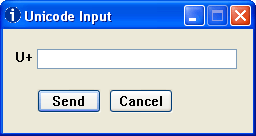
Another option is to install the UnicodeInput utility. This worked with every application I tried, including Internet Explorer. Once installed, the window below pops up whenever you hold down the Alt key and type the plus sign on the numeric keypad. Type the numeric value of the character in the box, click the Send button, and the character will be inserted into the window that had focus when you clicked Alt-plus.
Pros: Works everywhere (as far as I’ve tried). The software is free. Easy to use.
Cons: Requires installing software.
Interesting, thanks for the tip!
One funny side effect of one of the ways Windows handles Unicode is that if a plain text file which has only one line (no end-of-line) and has the pattern w{4} w{3} w{3} w{5} plus as many space-delimited five-character words as you like thereafter will be interpreted as Unicode, rendering gibberish.
Some clever soul noticed that “Bush hid the facts” matches this pattern and created a political conspiracy urban legend with it.
use charactermap application in systemtools.why do u need third party applications…?
I think it’s a registry value of type String (REG_SZ) and it’s located in KEY_CURRENT_USERControl PanelInput MethodEnableHexNumpad.
Source- http://en.wikipedia.org/wiki/Unicode_input
For the UnicodeInput utility you say “Cons: Requires installing software.”
FALSE !
There’s no installing necessary, you just unpack the zip archive and run unicodeinput.exe
@DanD, just because it doesn’t have a built-in wizard doesn’t mean it’s not installing. Any exe that you run has full access to many places on your computer and can put files or read (more popular) from anywhere. Non-installing exe’s are the most popular spyware, not saying the unicode exe is but definitely don’t be naive about how the executables work.
I wonder how to display Unicode characters on a Command Prompt window…
@Fausto Unicode isn’t fully supported in the command prompt window, which displays text using “OEM code page”, different from the “ANSI code page” used to support the non-wide Windows system calls. Typically, the OEM code page is CP437 for U.S. systems and CP850 on Western European systems. For non-ASCII characters to display properly, your program needs to encode the text in this code page before being written to the console.
HKEY_CURRENT_USERControl PanelInput MethodEnableHexNumpad to 1
Putting the key in the root directory HKEY_CURRENT_USER did not work. The author should update the post for people coming here from Google.
John,
The unicode input utility, you say it pops up when you click the ALT key. Well, some hot keys work using combinations of Alt+(some key)…and, in Photoshop, when you want to work with the Clone brush, you need to use the ALT key.
My question is, wont this Unicode utility pop up at the wrong times? If so, is there a way to suppress it when you use another program or want the ALT key for shortcuts?
Thanks for your help.
Now a days most of the Laptops/Notebooks PCs coming newly in market, do not have any Numerical Keypad or NumLock facility.
So Entering the +sign from Nemerical Keypad is not possible,
nor it is possible to Enter Alt+Decimal Code of Unicode characters from Numerical Keypad, as No Numerical keypad is available.
So please provide a easy solution, so that just pressing the Alt or Fn key or Windows Key and pressing the Decimal or Hex value of Unicode characters will type the required character.
Hi John, I’m having trouble trying to use the Runic alphabet via unicode. I can type all the German umlaut letters using unicode, for instance, alt + 129 gives me ü, but I can’t seem to do the Runic alphabet. It says the Unicode block for Runic alphabets is U+16A0–U+16FF. Does this mean I still hold down the alt key, then press U16A7 for example, or just UA16A7, or what? I have tried all the combinations I can think of, but can’t reproduce any runic letters. Thanks for any help you can offer mate!
Here’s a fourth:
Run the Character Map program, built into Windows. (If you are on Vista or later, type Character Map into the Start search box to get it, or whatever the equivalent of that is on windows 8).
Hi John,
thanks for your article. I again arrived at a point where nothing worked, not even the UnicodeInput utility because there is no number block on my laptop (and no way to emulate one with the Fn key or alike), and the shortcut could not be changed anyway. So I wrote a small AutoHotkey script which uses the standard shortcut Shift+Ctrl+U. Works. Have fun.
; (c) 2015 Simon A. Eugster  Public Domain

; This script listens for Shift+Ctrl+u and then shows a unicode input field.

; The unicode point (e.g. 2013 for an en dash) is then inserted in the active application.
; To run, download AutoHotkey from http://www.autohotkey.com/, save this script
; as e.g. UnicodeInput.ahk, and double-click it.
#SingleInstance force
+^u::
InputBox, codepoint, Unicode code point, U+
if not ErrorLevel
Send {U+%codepoint%}
return
Script now for download here:
http://granjow.net/unicode-input.html
Thanks for the utility – works great!
I have looked at all your techniques except your little program (and WinZip says I have to buy a license form them to install it) but I have been unable to insert a double sharp sign in a Word document. The Hex code is said to be 1D12A but when I use the Alt-X method I get just a small square. If I insert the code as decimal – 119082 – and then use the Alt-X method it just adds 32 to the end of the number. I made the registry change recommended elsewhere. Nobody seems to have considered that one might wish to enter a double sharp sign in a Word document. Or have I missed something?
I assume your font doesn’t support the character your trying to insert. Font support for Unicode is spotty for characters below ffff and rare for characters above ffff.
Thanks for this, John. I was finally able to enter a non-breaking em-dash this way. A lot of other well-meaning advice went nowhere.
There are specific unicode characters I want to just be able to quickly type WITHOUT having to put in the unicode code every single time. It is challenging knowing what search terms to put into google in order to find this information. Practically everything I check is about something similar but different (such as this).
Please tell me how to do that. I want to just code a key combination such as “control + (other key)” to input a unicode character. How do I do that? I tried using regedit but I can’t find anything about how to input a scancode that would map a key to a unicode character.
Logged a comment via Wufoo, not sure if it works.
UnicodeInput opens a background process every time it runs – I had a large number before I happened to check the task manager looking for something else.
Looks like these have to be terminated one at a time :-(
So how do you do the registry thing?
Hi John,
I am trying to get raised MC sign. This is french equivalent of ™. The code is 1F16A. I have tried doing regedit, installing above software. But, none are helping.
Could you tell me if there is any font I need to install? I have already installed Quivira as suggested by someone else.
Jay: I imagine your font is missing a glyph for 1F16A. You might try Arial Unicode or Google Noto Fonts.
Hi John,
Thanks for your reply. Really appreciate it and somehow feel I am near to achieving it.
Were you able to get this sign? I tried Arial Unicode MS and Noto Fonts. Somehow, still don’t get it.
Thank You.
Andrew Miller: try using the “United States International” keyboard layout instead of the standard US keyboard layout. This will allow you to input, for example, “ñ” by simply typing the “~” (while holding SHIFT) followed by “n”, or “è” by typing “`” followed by “e”. No need for unicode. Maybe this is what you were looking for?
OTHERS: I have my own question. I updated the registry to enable hex numpad. However when I key in the “U+….” code I do not always get the expected symbol. For example, I browsed Character Map to find this symbol (I am copying-and-pasting here): ⌘. Supposedly the code is U+2318. However, when I hold ALT and key in 2318 (or even PLUS 2318), I get this symbol: ♫. What is going on?
Somewhere the Registry path to the key has gone missing
[HKEY_CURRENT_USER\\Control Panel\\Input Method]
“EnableHexNumpad” = “1”
There’s a very simple solution to this problem. No need to edit the registry OR type codes.
Simply install AutoHotKey, and add a line of script for each special character you want to use. The script below gives you a unicode question mark (?) whenever you press Windows + /
#/::
Send,?
Return
In the above code, the # represents the Windows key. Here are some other keys:
^ = Ctrl
! = Alt
+ = Shift
`t = Tab
And here are some other useful Unicode characters I’ve collected for easy reference:
☓✗✘✓ ✔ ✕ ✖ X
☐ ☒ ☑ ❏ ❐ ❑ ❒■ ▬
✁ ✂ ✃ ✄ ✆ ✇ ✈ ✉☎☏ ✍ ✏✎✐ ✑ ✒
➀ ➁ ➂ ➃ ➄ ➅ ➆ ➇ ➈ ➉
➊ ➋ ➌ ➍ ➎ ➏ ➐ ➑ ➒ ➓
❶❷ ❸ ❹ ❺ ❻ ❼ ❽ ❾ ❿
⋆★☆ ✡ ✢ ✣ ✤ ✥ ✦ ✧ ✩ ✪ ✫ ✬ ✭ ✮ ✯✰ ✱ ✲ ✳ ✴ ✵ ✶ ✷ ✸ ✹ ✺ ✻ ✼ ✽
✾ ✿❀ ❁ ❂ ❃ ❄ ❅ ❆ ❇ ❈ ❉ ❊ ❋ ❍ ❖✠ ✙ ✚ ✛ ✜ ✝ ✞ ✟
¼ ½ ¾¹³²ºª°†&•◦∙‣⁃∞₪ • … — – “ ” ‘ ’ ❛ ❜ ❝ ❞
◘○◙©®℗™℠$÷‼¶§⌂∟¬¿ ❘ ❙ ❚
↨↑↓↕←→«»◄►↔▲▼←↑→↓↔↕↖↗↘↙☜☝☞☟↚↛↜↝↞↟↠↡↢↣↤↥↦↧↨↩↪↫↬↭↮↯↰↱↲↳↴↵↶↷↸↹↺↻↼↽↾↿⇀⇁⇂⇃⇄⇅⇆⇇⇈⇉⇊⇋⇌⇍⇎⇏⇐⇑⇒⇓⇔⇕⇖⇗⇘⇙⇚⇛⇜⇝⇞⇟⇠⇡⇢⇣⇤⇥⇦⇧⇨⇩⇪
➔ ➘ ➙ ➚ ➛ ➜ ➝ ➞ ➟➠ ➡ ➢ ➣ ➤ ➥ ➦ ➧ ➨ ➩ ➪ ➫ ➬ ➭ ➮ ➯
➱ ➲ ➳ ➴ ➵ ➶ ➷ ➸ ➹ ➺ ➻ ➼ ➽ ➾
☀☁☂☼☃☄
♥ ❤ ❥ ♢♥♦♣♠♤♧❡ ❢ ❣❦ ❧
♔♕♖♗♘♙♚♛♜♝♞♟
♩♪♫♬♭♮♯
☹☺☻㋡㋛〠シッツヅ
☇☈☉☊☋☌☍☖☗☚☛ ☠☡☢☣☤☥☦☨☩☪☫☬☭☮☯☰☸♨✌
☽☾☿♀♁♂♃♄♅♆♇♈♉♊♋♌♍♎♏♐♑♒♓
♲♺♳♴♵♶♷♸♹♻♼♽
█▄▀░▒▓│┤╣║╗╝┐└┴┬├─┼╚╔╩╦╠═╬┘
┌⏀⏁⏂⏃⏄⏅⏆⏇⏈⏉⏊⏚⏛
℀ ℁ ℂ ℃ ℄ ℅ ℆ ℇ ℈ ℉ ℊ ℋ ℌ ℍ ℎ ℏ
ℐ ℑ ℒ ℓ ℔ ℕ № ℗ ℘ ℙ ℚ ℛ ℜ ℝ ℞ ℟
℠ ℡ ℣ ℤ ℥ Ω ℧ ℨ ℩ K Å ℬ ℭ ℮ ℯ
ℰ ℱ Ⅎ ℳ ℴ ℵ ℶ ℷ ℸ ⅍ ⅎ
Ü〲ὃϟ☽☾☈℃℉€$
I have Several Ways to enter Special Characters:
1. Copy and Paste from a list I created and saved in Notepad.
2. Copy and Paste from the Office Programs Character Map.
3. Copy and Paste from the Windows Operating System Character Map.
4. Use the Alt Key Plus the Keystroke value from the Character Map. Will only work on Number Pad not the numbers across the top of the keyboard.
5. Use the Alt X method. Enter the Unicode Value and Press Alt X. You can use the numbers at the top of the keyboard.
This does not work on all programs.
6. Use the Unicode Input Tool which is Free
What to see a list of all 143,859 Characters in PDF form?
https://www.unicode.org/Public/13.0.0/charts/CodeCharts.pdf
The “Alt – x” method is great, thank you for documenting it.
Alt – + method doesn’t always work in many software, for example, if your Unicode characters includes an F, this won’t work in Firefox, as ALT-F brings up Firefox’s file menu. (F is probably not the only offending combination either but likely the most common problematic one).
I end up in most cases temporarily renaming a file on my desktop and typing the unicode ALT-+ characters there, then copy to clipboard.
This only works on the desktop, as even in an Explorer window ALT-F brings up the file menu.