Posts tagged as:

Emacs

This is a continuation of my previous post, Running Python and R inside Emacs. That post shows how to execute independent code blocks in Emacs org-mode. This post illustrates calling one code block from another, each written in a different language. [click to continue...]

{ 1 comment }

Running Python and R inside Emacs

by John on February 9, 2012

Emacs org-mode lets you manage blocks of source code inside a text file. You can execute these blocks and have the output display in your text file. Or you could export the file, say to HTML or PDF, and show the code and/or the results of executing the code.

Here I’ll show some of the most basic possibilities. For much more information, see  orgmod.org. And for the use of org-mode in research, see A Multi-Language Computing Environment for Literate Programming and Reproducible Research.

[click to continue...]

{ 3 comments }

Advantages of everything-is-text

by John on December 30, 2011

In a typical Windows program, some output text can be copied as text but some is only an image. For example, the text in the body of a document is text, but the words on the menus are not. The text in a dialog box may or may not be.

In Emacs, text is just text, no matter where you see it. This means that Emacs is less visually interesting because there is less variety. But this also has several advantages that may not be immediately obvious. I’ll give a couple examples.

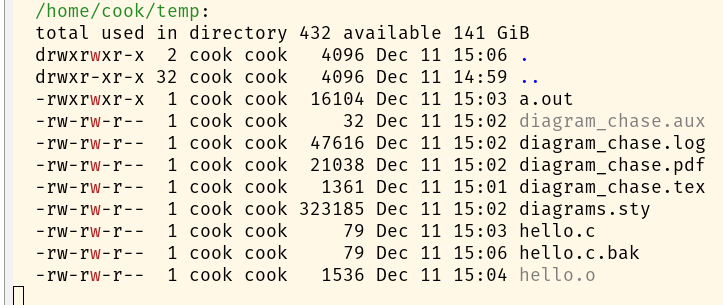
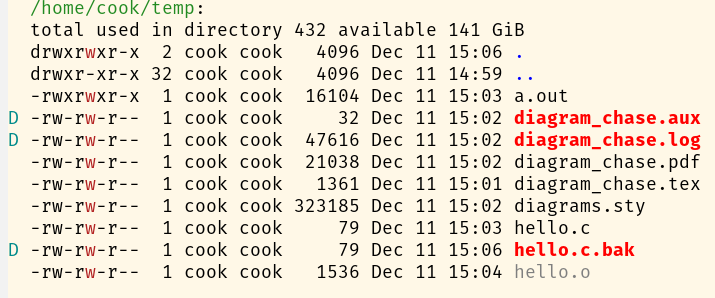
The Emacs directory editor dired lists files in a text buffer. The output is essentially the output of ls. (On Windows, Emacs emulates ls.) That means you can do anything to the output you could do to text: copy, paste, search, etc. No text is off-limits. And in editable mode, you can rename files just by editing their names. You could, for example, rename many files at once using regular expressions.

Dired also lets you navigate the file system with the same commands you use to edit files. In particular, you can keep your hands on the keyboard. (It’s possible to use the Windows file explorer without a mouse, but it’s limited and awkward.)

Another advantage of everything simply being text is that you can run a shell inside Emacs. Why not? A shell is just text output. In an ordinary shell, editing commands are mostly limited to the current line. Not all text is created equal. But when you’re running a shell inside an editor, all text is equal: current line, previous lines, and text on either side of the command prompt. And if you want a transcript of a shell session, just save the buffer displaying the session.

If you’re shopping for a text editor and spend an hour trying each one out, Emacs may not look very promising. It has odd terminology, weird key strokes, etc. But if you try Emacs long enough, and particularly if you have someone to help you get started, you start to appreciate the advantages of subtle features such as everything simply being a text buffer.

Related posts:

The importance of being textual
Mental context switches are evil
Personal organization software

{ 10 comments }

A thermonuclear word processor

by John on September 6, 2011

“I use Emacs, which might be thought of as a thermonuclear word processor.” — Neal Stephenson

From In the beginning was the command line

Related posts:

Giving Emacs another try
Bumblebee software
Personal organization software

{ 3 comments }

A surprise with Emacs and Office 2007

by John on June 18, 2011

I had a little surprise when I tried to open an Excel file from Emacs. I was using dired, a sort of file explorer inside Emacs. I expected one of two things to happen. Maybe Emacs would know to launch the file using Excel. Or maybe it would open the binary file as a bunch of gibberish. Instead I got something like this:

screenshot

This was disorienting at first. Then I thought about how Office 2007 documents are zipped XML files. But how does dired know that my .xlsx file is a zip file? I suppose since Emacs is a Unix application at heart, it’s acting like a Unix application even though I was using it on Windows. It’s determining the file type by inspected the file itself and ignoring the file extension.

(Office 2007 documents are not entirely XML. The data and styling directives are XML, but embedded files are just files. The spreadsheet in this example contains a large photo. That photo is a JPEG file that gets zipped up with all the XML files that make up the spreadsheet.)

So I learned that Emacs knows how to navigate inside zip files, and that a convenient way to poke around inside an Office 2007 file is to browse into it from Emacs.

Here’s another post that discusses Emacs and Office 2007, contrasting their interface designs: Clutter-discoverability trade-off

{ 9 comments }

Mental context switches are evil

by John on June 9, 2011

This week I’ve run across two examples of technical strategies to reduce mental context switches.

The first example is Pete Kruckenberg’s story of why his team chose to develop a web application using node.js even though he had extensive experience in Perl/Apache. One of his arguments is that since the client-side code has to be written in JavaScript, it saves mental energy to use JavaScript for the server-side code as well. Even for someone who knows JavaScript and Perl well, it takes mental energy to oscillate between the two languages.

There’s much more to node.js than its use of JavaScript. It requires a very different approach to developing web applications. Kruckenberg and his colleagues had to weigh multiple factors in deciding their development framework. But it may not be too much of a simplification to say they chose a big, one-time mental context switch — the node.js style of development — in order to avoid countless daily context switches between JavaScript and Perl.

The second example is Ryan Barrett’s blog post Why I run shells inside Emacs.

Mental context switches are evil. Some people handle them better than others, but not me. I handle them worse. I feel it, almost physically, when context switches whittle down my precious flow piece by piece.

Barrett explains that he first tried configuring Emacs and his shell to be similar, but the very similarity made the context switch more irritating.

Even something as small as switching between Emacs and the shell can hurt, especially when I do it thousands of times a day. … What’s worse, only some parts are different, so my muscle memory is constantly seduced into a false sense of familiarity, only to have the rug yanked out from under it seconds later.

Both examples highlight the cost of context switches. Neither Kruckenberg nor Barrett mentioned the cost of learning two contexts. Instead both focused on the cost switching between two contexts. Novices might understandably want to avoid having to learn two similar tools, but these stories were from men who had learned two tools and wanted to avoid oscillating between them.

My favorite line from Barrett is “context switches whittle down my precious flow piece by piece.” I’ve felt little distractions erode my ability to concentrate but hadn’t expressed that feeling in words.

It’s no exaggeration to call flow “precious.” Productivity can easily vary by an order of magnitude depending on whether you’re in the zone. It may sound fussy to try to eliminate minor distractions, but if these distractions make it harder to get into the zone, they’re worth eliminating.

Related posts:

Programming language fatigue
A little simplicity goes a long way

{ 15 comments }

Bumblebee software

by John on May 16, 2011

Some say that aerodynamics can’t explain how a bumblebee flies. Perhaps that was once the case, but as far as I know there are no difficulties now. The bumblebee story persists as an urban legend. And it makes a nice metaphor for things that work better in practice than in theory.

Here’s the passage that brought the bumblebee story to mind.

Almost every software engineering principle that has become generally accepted as useful and valuable, Emacs flouts. The code is 24 years old, huge, and written by hundreds of different people. By rights, the whole thing should blow up. But it works — and works rather well.

This comes from Jim Blandy’s chapter in Beautiful Architecture. Blandy explains that Emacs’ architecture has allowed it to thrive despite some apparent disadvantages. Emacs is mostly written in its own programming language, Emacs Lisp.

Emacs Lisp has no object system, it’s module system is just a naming convention, all the fundamental text editing operations use implicit global arguments, and even local variables aren’t quite local.

In short, Emacs expects developers to be self-disciplined and does not enforce a great deal of external discipline. However, because the software is so light on bureaucracy, it is easy to customize and to contribute to.

TeX is another bumblebee project. Like Emacs, it has thrived for decades without following currently fashionable software techniques. Knuth implies in this presentation that TeX would have been a dismal failure if it had used technologies that are trendy now.

Related posts:

Serious lessons from Knuth’s joke
Giving Emacs another try

{ 6 comments }

Personal organization software

by John on April 15, 2011

I’ve tried various strategies and pieces of software for personal organization and haven’t been happy with most of them. I’ll briefly describe my criteria and what I’ve found.

My needs are fairly simple. I don’t need or want something that could scale to running a multinational corporation.

I’d like something with a portable, transparent data format. I don’t want the data stored in a hidden file or in a proprietary format. I’d like to be able to read the data without the software that was used to write it.

I’d like to be as structured or unstructured as I choose and not have to conform to a rigid database schema. I’d like to be able to do ad hoc queries as well as strongly typed queries.

I’d like something that exports to paper easily.

Here’s what I found: org-mode. It’s an Emacs mode for editing text files. It provides sophisticated functionality, but all the sophistication is in the software, not the data format. It’s more convenient to work with org-mode files in Emacs, but the raw file format is just a light-weight mark-down, easy for a person or a computer to parse.

When I went back to using Emacs a year ago after a 15-year hiatus, I heard good things about org-mode but didn’t understand what people liked about it. I heard it described as a to-do list manager and was not impressed. I’m not interested in the features I was first introduced to: tracking the status of to-do items and making agendas. I still don’t use those features. It took me a while to realize that org-mode was what I had been looking for. It was similar in spirit to something I’d thought about writing.

Emacs is an acquired taste. But someone who doesn’t use Emacs could get some good ideas from looking at org-mode. I imagine some people have borrowed its ideas and implemented them for other editors. If not, someone should.

The org-mode site has links to numerous introductions and tutorials. I like the FLOSS Weekly interview with org-mode’s creator Carsten Dominik. In it he explains his motivation for writing org-mode and gives a high-level overview of its features.

Related posts:

Giving Emacs another try
Forced to be simple
Not for everyone
Software that gets used

{ 14 comments }

Emacs calculator

by John on October 11, 2010

Emacs has quite a sophisticated scientific calculator. Like many other things in Emacs, it is both powerful and idiosyncratic.

[click to continue...]

{ 3 comments }

Emacs command to add HTML tags

by John on August 5, 2010

A while back I asked Jason Fruit how to add HTML tags to text in Emacs, something like the format painter in Microsoft applications. He said he didn’t know of anything and wrote the following macro for me.

(defun tag-word-or-region (tag)
    "Surround current word or region with a given tag."
    (interactive "sEnter tag (without <>): ")
    (let (pos1 pos2 bds start-tag end-tag)
        (setq start-tag (concat "<" tag ">"))
        (setq end-tag (concat "</" tag ">"))
        (if (and transient-mark-mode mark-active)
            (progn
                (goto-char (region-end))
                (insert end-tag)
                (goto-char (region-beginning))
                (insert start-tag))
            (progn
                (setq bds (bounds-of-thing-at-point 'symbol))
                (goto-char (cdr bds))
                (insert end-tag)
                 (goto-char (car bds))
                 (insert start-tag)))))

I added the following line to my .emacs file to bind Jason’s macro to the key sequence C-x t.

(global-set-key "\C-xt" 'tag-word-or-region)

To add a tag to a single word, place the cursor before or in the word and execute the command. To tag a block of text, select the text first then execute the command.

Related posts:

Emacs adventures
Giving Emacs another try

{ 4 comments }

Miscellaneous Emacs adventures

by John on July 28, 2010

I recently found out there’s an Emacs command M-x woman that’s a pun on “w/o man”, i.e. a way to read online help without using the usual man command.

***

I tried to edit a 1.2 GB text file with Emacs the other day. I got an error saying that Emacs has a 500 MB file size limit on 32-bit systems. This was on a 32-bit Windows XP machine, so the warning was reasonable. I appreciated that it promptly said it could not open the file.

I tried again on my 64-bit Windows 7 machine and got the same message; I believe I’m running a 32-bit version of Emacs on my 64-bit PC.

I also tried opening the file with Emacs on a 64-bit Red Hat Enterprise Linux box with 16 GB of memory. This time I did not get a file size message. Instead, Emacs crashed.

The file opened quickly on Windows, even my 32-bit XP box, using Notepad++.

***

When I set up Emacs on Windows, I created an “Open with Emacs” context menu following the instructions here. That has worked well except for two problems.

  1. Every file is opened in a new instance of Emacs.
  2. It stopped working on one of my computers for reasons unknown.

I’ve been meaning to solve the first problem, and when the second happened I decided it was time. According to the Emacs documentation,

The recommended way to associate files is to associate them with
emacsclientw.exe. In order for this to work when Emacs is not yet started, you will also need to set the environment variable ALTERNATE_EDITOR to runemacs.exe. To open files in a running instance of Emacs, you will need to add the following to your init file: (server-start)

I had to tinker with that a little to make it work. I know I had to add the path to my Emacs bin directory to my PATH environment variable but I don’t remember what else I did.

The key thing to note is that you should associate files with emacsclientw.exe rather than with runemacs.exe. I used the instructions in this article to remove the association with the latter. Thanks to Mark for pointing out the article.

(The Windows “Open with” feature remains a mystery. The article above explains how to remove a program from the “Open with” list, and the directions worked for removing runemacs.exe. But they did not work for removing other programs. I’m also unclear how you add something to the “Open with” list. If you right-click on a file and select “Open with -> Choose program …” the program you select may appear in the “Open with” list next time. Or not. This did add emacsclientw.exe to the list.)

Related post:

Emacs a few weeks later
Not for everyone

{ 1 comment }

Not for everyone

by John on June 11, 2010

The expression “_____ isn’t for everyone” can sound snobbish. For example, if someone says that their favorite wine isn’t for everyone, are they really saying that not everyone has the refined taste that they do? Or if they say their favorite author isn’t for everyone, are they really saying that not everyone is smart enough to appreciate the books they enjoy?

But sometimes the expression is used humbly, as in Brian Carper’s article Emacs isn’t for everyone. There are some arrogant Emacs users out there, but Brian isn’t one of them, at least not as far as I can tell by reading his article. He simply discusses some of the pros and cons of the software and explains why some people would be better served by another tool.

Dilbert.com

I hope you’ll keep reading even if you have no interest in Emacs. This isn’t a post about Emacs per se. It’s about some of the things the article made me think of.

The majority of software development articles either advocate the author’s tool of choice or complain about a tool the author is forced to use. (See Ford-Chevy arguments in tech for a possible explanation.) Articles that frankly discuss pros and cons are rare. Here’s a sentence from the article I particularly liked.

Mastering an arcane text editor isn’t necessarily going to be on the top of the list of everyone’s goals in life, especially when there are other editors that are easier to use and give you a significant subset of what Emacs would give you.

That’s a far cry from “Maybe you’re not smart enough to use Emacs.”

I also appreciated that the article wasn’t overly pragmatic. It wasn’t just a dry cost-benefit analysis. Brian explains

I didn’t learn Emacs with the goal of being productive. I learned it for the same reason some people build cars in their garages, while most people just buy a one and drive it to and from work every day. … For me, productivity was a beneficial side-effect.

Every once in a while you’ll see someone say they use a tool for fun. For instance, I’ve heard several people say they were burned out on programming until they discovered Perl or Ruby. But it’s far more common for someone to say “This made me more productive.” than to honestly admit “I enjoy tinkering with this.” The two probably go hand in hand: you’ll probably be more productive using a tool you enjoy tinkering with even if in some objective sense it’s inferior to another tool.

Related posts:

Doing good work with bad tools
Chauffeurs and Ferraris revisited
Emacs a few weeks later

{ 7 comments }

Emacs a few weeks later

by John on May 13, 2010

A few weeks ago I mentioned that I would give Emacs another try.  I said I would use it through April and then decide whether to keep using it or give up. Here are some thoughts on Emacs a few weeks later.

[click to continue...]

{ 11 comments }

Giving Emacs another try

by John on April 1, 2010

I used Emacs for several years until 1995 when I started developing Windows software. I tried picking Emacs back up a few times since then, but each time I got frustrated and decided it wasn’t worthwhile. But things change and now I’m willing to give it another try. I’m well aware of the difficulties, but I think it may be worth the investment.

I’ve evaluated several editors on Windows, and I haven’t found anything as powerful or as configurable as Emacs. But the main reason I’m willing to try Emacs again is that I’m tired of using a different program for every kind of file I edit. I use a dozen programs, none of which I know very well. I want to learn one tool well and use it for many different tasks. As the Emacs guided tour says:

All of the basic editing commands (and there are lots of them) are available no matter what you’re trying to do: write code, read a manual, use a shell, or compose an email.

All the tools Emacs provides for opening, saving, searching, and processing text (and more) are available to you no matter what you’re doing.

Using Emacs is painful at this point, like the first day getting back to an exercise routine. But some old habits are starting to coming back, and I’ve discovered a few customizations that make Emacs more convenient.

I’m doing an experiment. I’ve committed to using Emacs through the end of April. After that I may decide that the quirks of Emacs are either too much to get used to or will take too much effort customize around. Or I may decide I want to keep using it and dive deeper.

Related posts:

Emacs
One program to rule them all
Ford-Chevy arguments in tech
Using Windows without a mouse

{ 7 comments }

Emacs

by John on March 16, 2010

Emacs is a text editor with ambitions to be an operating system. I do not use Emacs, though I once did, and I still find it intriguing. I’d like to find something similar that acts more like a Windows program.

GNU Emacs began in 1984 and has been in constant development ever since. The current version is 23.1. How many applications from 1984 are still in widespread use today? The only other one that comes to mind is TeX.

I used Emacs in graduate school and for a few years after that. I was fairly fluent with Emacs, though I never customized it much. I intended to learn Emacs Lisp and all that, but it never happened.

When I started developing Windows software I used Emacs at first, but the benefits of Visual Studio soon persuaded me give up my old editor. It was much easier to go with the flow.

I’ve revisited Emacs a couple times over the years. I still have some of the keystrokes burned into my memory. I use it on Linux now and then, but I mostly work on Windows, and my experience using Emacs on Windows has been frustrating to say the least. Tasks that are trivial in any Windows application, such as printing and spell checking, are surprisingly difficult to set up in Emacs. I’m sure it is possible to resolve these problems, though I never did.

The problems with printing and spell checking are part of the larger issue that Emacs is so idiosyncratic. It behaves nothing like a typical Windows program. Some people may say that’s a good thing. But it makes life more complicated if you switch between Emacs and more conventional Windows software.

Emacs is no more a typical Mac application than it is a typical Windows application. And yet my impression is that this is less of a problem for Mac users. I’d like to understand whether this is true and if so why.

One of the things I liked about Emacs was the way you could “live” there. An expert Emacs user might work inside Emacs all day, using it as an editor, debugger, shell, file system explorer, email program, etc. Steve Yegge is such an expert. When he blogged about his move from Windows to Mac,  he said the main reason for the switch was that he prefers the appearance of the fonts on a Mac. Changing operating systems was not a big deal for Yegge because he didn’t really live in Windows before, nor does he live in OS X now. He lives in Emacs. He concluded his essay by saying

So I’ll keep using my Macs. They’re all just plumbing for Emacs, anyway. And now my plumbing has nicer fonts.

Living inside Emacs comes at a price. Part of that price is writing lots of Emacs Lisp to glue things together. Another part of that price is the commitment to practicing using Emacs. As Yegge says elsewhere

… you need to make a serious, lifelong commitment to Emacs in order to master it. … So it’s not an editor for the faint of heart …

Yikes! I’m not ready to make a serious, lifelong commitment to a piece of software. To my wife? Yes. To my text editor? No.

One of the best features of Emacs is that it has custom “modes” for various kinds of files. Instead of using a separate program for editing every kind of file, Emacs users use one program with different modes. As soon as a new file type comes out, say for a new programming language, someone will post an Emacs mode for that new language.

I’d like to find an editor on Windows that is analogous to Emacs. By that I mostly have in mind a powerful, highly configurable editor with support for many file types. I’d want it to behave like a Windows application, not a foreign transplant, and integrate well with .NET.

There was a project to create such an editor, nicknamed Emacs.NET. It was announced in late 2007. It sounds like the project is still alive, but it doesn’t seem all that promising.

I’ve looked at a few Windows editors that claim to be highly configurable but are not well documented. So if such an editor is configurable, it’s configurable for the person who wrote it or possibly for anyone else willing to study the source code.

Any suggestions for a general purpose Windows editor? For starters, I’d be pleased to find something that’s good at editing LaTeX and HTML.

Update (2 April 2010): I’ve decided to give Emacs another try.

Related posts:

This post started out as an update to my earlier post One program to rule them all.

{ 26 comments }