Posts tagged as:

LaTeX

Typesetting music in LaTeX and LilyPond

by John on March 15, 2009

I tried typesetting music in LaTeX some time ago and gave up. The packages I found were hard to install, the examples didn’t work, etc. This weekend I decided to try again. I tried plowing through the MusiXTeX documentation and got no further than I did last time.

I posted a note on StackOverflow and got some good responses. Nikhil Chelliah suggested I look at LilyPond. I had looked at LilyPond before, and @jleedev explained how to integrate LaTeX and LilyPond.

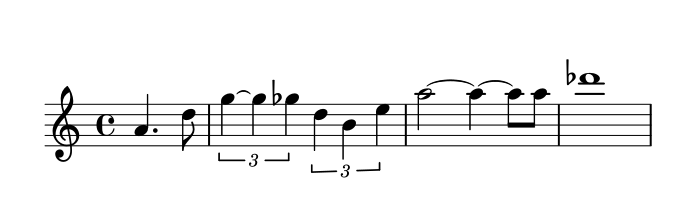
Here’s some sheet music I included in my previous post, March in 7/4 time.

sheet music example

Here’s a full-sized PDF file version of the music above. And here’s the LilyPond source code used to create the music.

\relative c' {
\time 7/4
\key f \major
\clef treble
f g f \times 2/3{ c8 c c} f4 g a
g a8. bes16 a4 g f g c,
f g f \times 2/3{ c8 c c} f4 g a
g a8. bes16 a4 g f e f
}

The notation looks cryptic at first, but it makes sense after a few minutes. The command \relative c' means that the following pitches will be relative to middle C. For example, the first note, F, is the F closest to middle C. Each note is the same length as the previous note by default, and the first note is a quarter note by default. The notation c8 means that the C is an eighth note, except it’s in the context of a triplet (\times 2/3) and so it’s an eighth note triplet. The next F is denoted f4 to indicate that we’re back to quarter notes.

The notation a8. says that the A is a dotted eighth note. For the next note, bes16 means a B-flat sixteenth note. The suffix “es” stands for “flat” and “is” stands for “sharp.” (The documentation says it’s Dutch. I’ve never seen it before.) I don’t understand why I had to tell it that the B was flat. The code specified earlier that the key was F major, which implies B’s are flat. I suppose the code for individual notes is decoupled from the code to draw the key signature. That would make entering music painful in keys that have lots of sharps or flats. Maybe there’s a way to specify default sharps or flats.

The comma in c, gives the absolute pitch of the C. In relative mode, LilyPond assumes by default that each pitch name refers to the pitch closest to its predecessor. The C closest to the previous note, F, would have been the C up one fourth rather than down one fifth, so the comma was necessary to tell LilyPond to go down.

If I were to do a lot of music processing, I’d probably look at a commercial package such as Sibelius. But for now I’m just interested in producing small excerpts like that above, and it looks like LilyPond may be fine.

Update: I double checked the rules about flats etc. Yes, I do have to specify explicitly that the B in this example is B-flat. If I just say b rather than bes, LilyPond will add a natural sign in front of the B! It’s strange. It is aware of the key signature: when I tell it the B is flat, it says “OK, then I don’t have to mark that specially since it’s implicit in the key signature.” And if I don’t tell it the B is flat, it says “Oh, that’s an exception to the key signature. Better mark it with a natural sign.”

{ 4 comments }

How to display side-by-side figures in LaTeX

by John on January 14, 2009

The other day I tried putting two graphs side-by-side by setting R’s mfrow parameter. That made the graphs look odd because not everything was scaled proportionately. Then someone told me I could use a LaTeX command to place my original graphs side-by-side rather than creating a new image.

The trick is to use the subfigure package. Include the directive \usepackage{subfigure} at the top of your file, then use code something like the following.

\begin{figure}
\centering
\mbox{\subfigure{\includegraphics[width=3in]{fig1.pdf}}\quad
\subfigure{\includegraphics[width=3in]{fig2.pdf} }}
\caption{Text pertaining to both graphs ...} \label{fig12}
\end{figure}

If you put text in square brackets immediately after the \subfigure command, that text will be a caption for the corresponding sub-figure. For example, the LaTeX code above might be changed to include the following.

...\subfigure[Description of left graph]{\includegraphics...

{ 2 comments }

Why is TeX so popular in Germany?

by John on December 16, 2008

A lot of good (La)TeX resources come from Germany. I assume from the amount of development and support activity, there are probably a lot of users as well. Does anyone know why TeX is apparently so strong in Germany? Is there something about the German language that TeX supports particularly well?

{ 7 comments }

How to put PDF properties in a LaTeX file

by John on November 24, 2008

My previous post described how to put links in a PDF file generated from LaTeX. The hyperref package that lets you to include links also lets you to set PDF document properties. I’ve been using Adobe Acrobat to do this after creating my PDF file with pdflatex, but that’s unnecessary. Here’s how to put the PDF properties directly in the LaTeX file. Add something like this

\hypersetup
{
    pdfauthor={John Hancock},
    pdfsubject={Some subject},
    pdftitle={Sample document},
    pdfkeywords={LaTeX, PDF, hyperlinks}
}

after the \usepackage{hyperref} instruction at the top of your file.

{ 1 comment }

This has been on my to-do list for a while, but I finally found out how to embed hyperlinks in a PDF file generated from LaTeX.

Short answer: put \usepackage{hyperref} in your header, and when you want to link to a page, use the command \href{URL}{anchor text}. For example,

\documentclass{article}
\usepackage{hyperref}
\begin{document}

Here's a link to \href{http://twitter.com/home}{Twitter}.

\end{document}

For much more detail on links in LaTeX documents, see Patrick Jöckel’s LaTeX-PDF page and the hyperref package documentation.

{ 1 comment }

Watch what you name graphics files in LaTeX

by John on October 11, 2008

A while back I was trying to paste a figures into a LaTeX document this evening with names like foo_27.png and foo_32.2.png, putting a parameter value into the name of the plot. The former worked but the latter didn’t.

It turns out the \includegraphics command parses the file extension in a naive way to determine the file type. When it sees foo_27.png, it says “OK, a .png file”. But when it sees foo_32.2.png, it says “.2.png? I’ve never heard of that file type.”

{ 5 comments }

Four ways to convert Excel tables to LaTeX

by John on September 16, 2008

Gregor Gorjanc has a post on Excel and LaTeX that lists four ways to convert and Excel table into LaTeX. I’ve used two of the methods he lists: brute force and excel2latex. I recommend excel2latex. I used it frequently until I upgraded to Office 2007 and the plug-in quit working. The only bug I remember with it was that sometimes it would give you a warning saying it didn’t work, but it did; the LaTeX code you wanted was waiting for you on the Windows clipboard.

I plan to try out Gregor’s other two suggestions. Creating tables in Excel is far easier than doing so in LaTeX and I miss the functionality that excel2latex provided. Maybe there’s a way to use excel2latex with Excel 2007. If you know of a way, please leave a comment.

{ 7 comments }

Including images in LaTeX files

by John on July 24, 2008

Here are the rules for including images in LaTeX files as far as I can tell.

Near the top of your document, use \usepackage{graphics} to load the graphics package. Then at the point where you want to include your image, use \includeimage{...} where … is the path to your file.

If you want to create a PDF file with pdflatex, your image must be in PDF, PNG, or JPEG format.

If you want to create a DVI file with latex or a PS file with dvips, your image must be in PS or EPS format.

There’s no way to include a GIF file without first converting it to another file format.

If you use \usepackage{pgf} rather than  \usepackage{graphics} at the top of the file, nothing changes except that you must chop the file extensions off image file names.

{ 3 comments }

LaTeX and PowerPoint presentations

by John on July 24, 2008

I use LaTeX for math documents and PowerPoint for presentations. When I need to make a math presentation, I can’t have everything I want in one environment. I usually go with PowerPoint.

Yesterday I tried the LaTeX Beamer package based on a friend’s recommendation. I believe I’ll switch to using this package as my default for math presentations. Here are my notes on my experience with Beamer.

Installation

Beamer is available from SourceForge. The installation instructions begin by saying “Put all files somewhere where TeX can find them.” This made me think Beamer would be another undocumented software package, but just a few words later the instructions point to a 224-page PDF manual with plenty of detail. However, I would recommend a couple minor corrections to the documentation.

  1. The manual says that if you want to install Beamer under MiKTeX, use the update wizard. But the update wizard will only update packages already installed. To install new packages with MiKTeX, use the Package Manager.
  2. The manual says to install latex-beamer, pgf, and xcolor. The Package Manager shows no latex-beamer package, but does show a beamer package.

The installation went smoothly overall.

Using Beamer

I found Bruce Byfield’s introduction to Beamerhelpful. The Beamer package is simple to use and well documented.

It’s nice to use real math typography rather than using PowerPoint hacks or pasting in LaTeX output as images. I also like animating bullet points simply by adding \pause to the end of an enumerated item.

Inserting images

The biggest advantage that PowerPoint has over LaTeX is working with images. With PowerPoint you can:

  1. Paste images directly into your presentations.
  2. Edit files in place.
  3. Carry around your entire presentation as a single file.
  4. Include multiple image formats in a consistent way.

The last point may not seem like much until you’ve tried to figure out how to include images in LaTeX.

{ 4 comments }

I frequently need to look up how to add diacritical marks to letters in HTML, TeX, and Microsoft Word, though not quite frequently enough to commit the information to my long-term memory. So today I wrote up a set of notes on adding accents for future reference. Here’s a chart summarizing the notes.

Accent HTML TeX Word
grave grave \` CTRL + `
acute acute \' CTRL + '
circumflex circ \^ CTRL + ^
tilde tidle \~ CTRL + SHIFT + ~
umlaut uml \" CTRL + SHIFT + :
cedilla cedil \c CTRL + ,
æ, Æ æ, Æ \ae, \AE CTRL + SHIFT + & + a or A
ø, Ø ø, Ø \o, \O CTRL + / + o or O
å, Å å, Å \aa, \AA CTRL + SHIFT + @ + a or A

The notes go into more details about how accents function in each environment and what limitations each has. For example, LaTeX will let you combine any accent with any letter, but MS Word and HTML only support letter/accent combinations that are common in spoken languages.

{ 1 comment }

Languages that are easy to pick back up

by John on July 1, 2008

Some programming languages are much easier to come back to than others. In my previous post I mentioned that Mathematica is easy to come back to, put Perl is not.

I found it easy to come back LaTeX after not using it for a while. It has a few quirks, but it’s basically consistent. The LaTeX commands for Greek letters are their names, lower case names for lower case letters, upper case names for upper case letters. The command mathematical symbols is usually the name a mathematician would give the symbol. Modes always begin with \begin and end with \end.

Python also has a consistent syntax that make it easier to come back to the language after a break. Someone has said that Python is similar to Perl, except that the word “except” does not appear nearly so often in the Python documentation.

It’s more important that a language be internally consistent than conventional. Each of the languages I mentioned have their peculiarities. Mathematica uses square brackets for function argument arguments. LaTeX uses percent signs for comments. Python uses indention to denote blocks. Each of these take a little getting used to, but each makes sense in its own context.

A special case of consistency is using full names for keywords. Mathematica always spells out words in full. For example, the gamma distribution object is named GammaDistribution. I don’t mind a little extra typing. I’d rather optimize for recall and readability than minimize keystrokes since I spend more time recalling and reading than typing. (One flaw in LaTeX is that it occasionally uses unnecessary abbreviations. For example, \infty for infinity. The corresponding Mathematica keyword is Infinity.)

{ 4 comments }

Contrasting Microsoft Word and LaTeX

by John on April 3, 2008

Here’s an interesting graph from Marko Pinteric comparing Microsoft Word and Donald Knuth’s LaTeX.

Comparing MS Word and LaTeX

According to the graph, LaTeX becomes easier to use relative to Microsoft Word as the task becomes more complex. That matches my experience, though I’d add a few footnotes.

  1. Most people spend most of their time working with documents of complexity to the left of the cross over.
  2. Your first LaTeX document will take much longer to write than your first Word document.
  3. Word is much easier to use if you need to paste in figures.
  4. LaTeX documents look better, especially if they contain mathematics.

See Charles Petzold’s notes about the lengths he went to in order to produce is upcoming book in Word. I imagine someone of less talent and persistence than Petzold could not have pulled it off using Word, though they would have stood a better chance using LaTeX.

Before the 2007 version, Word documents were stored in an opaque binary format. This made it harder to compare two documents. A version control system, for example, could not diff two Word documents the same way it could diff two text files. It also made Word documents difficult to troubleshoot since you had no way to look beneath the WYSIWYG surface.

However, a Word 2007 document is a zip file containing a directory of XML files and embedded resources. You can change the extension of any Office 2007 file to .zip and unzip it, inspect and possibly change the contents, the re-zip it. This opens up many new possibilities.

I’ve written some notes that may be useful for people wanting to try out LaTeX on Windows.

{ 3 comments }

Quick TeX to graphic utility

by John on January 17, 2008

Here’s a web site where you can type in some TeX code, click a button, and get back a GIF with a transparent background. Handy for pasting equations into HTML.

http://www.artofproblemsolving.com/LaTeX/AoPS_L_TeXer.php

For example:

gaussian integral

{ 1 comment }